digital-forensics
Modul 09: Teknik Recovery Data dan File Carving
Mata Kuliah: Digital Forensic for Military Purposes (Forensik Digital untuk Keperluan Militer)
SKS: 3 SKS
Pertemuan: 09
Topik: Teknik Recovery Data dan File Carving
Pengampu: Anindito, S.Kom., S.S., S.H., M.TI., CHFI
Tujuan Pembelajaran
Setelah menyelesaikan modul ini, mahasiswa diharapkan mampu:
- Memahami prinsip dasar penghapusan file dan mekanisme data remnants pada berbagai sistem file
- Menjelaskan konsep file carving dan teknik identifikasi file berdasarkan signature
- Melakukan recovery data yang terhapus menggunakan berbagai tools forensik
- Menerapkan teknik file carving pada unallocated space dan slack space
- Mengidentifikasi dan mengekstrak file berdasarkan header/footer signatures
- Menangani tantangan recovery pada SSD, media terenkripsi, dan damaged media
- Menggunakan hex editor untuk analisis manual file signature dan carving
1. Prinsip Penghapusan File dan Data Remnants
1.1 Mekanisme Penghapusan File
Penghapusan File (File Deletion) adalah proses yang menandai ruang penyimpanan sebagai tersedia untuk digunakan kembali, tetapi tidak secara fisik menghapus data dari media penyimpanan hingga area tersebut ditimpa oleh data baru.
Ketika sebuah file “dihapus”, yang sebenarnya terjadi adalah:
- Pointer Removal: Entry di file system table (MFT, FAT, inode) dihapus atau ditandai sebagai deleted
- Space Marking: Cluster atau block yang digunakan ditandai sebagai “available”
- Data Remains: Data sebenarnya masih ada di disk hingga area tersebut ditimpa
| Tipe Penghapusan | Mekanisme | Recoverable? | Tingkat Kesulitan |
|---|---|---|---|
| Normal Delete | Pointer dihapus, data tetap ada | Ya | Mudah |
| Shift+Delete | Bypass Recycle Bin, pointer dihapus | Ya | Mudah |
| Format Quick | Rebuild file system table | Ya | Sedang |
| Format Full | Overwrite dengan zeros | Sebagian | Sulit |
| Secure Delete | Multiple overwrite passes | Tidak | Sangat Sulit |
| TRIM (SSD) | Block deallocated & garbage collected | Tidak | Hampir Mustahil |
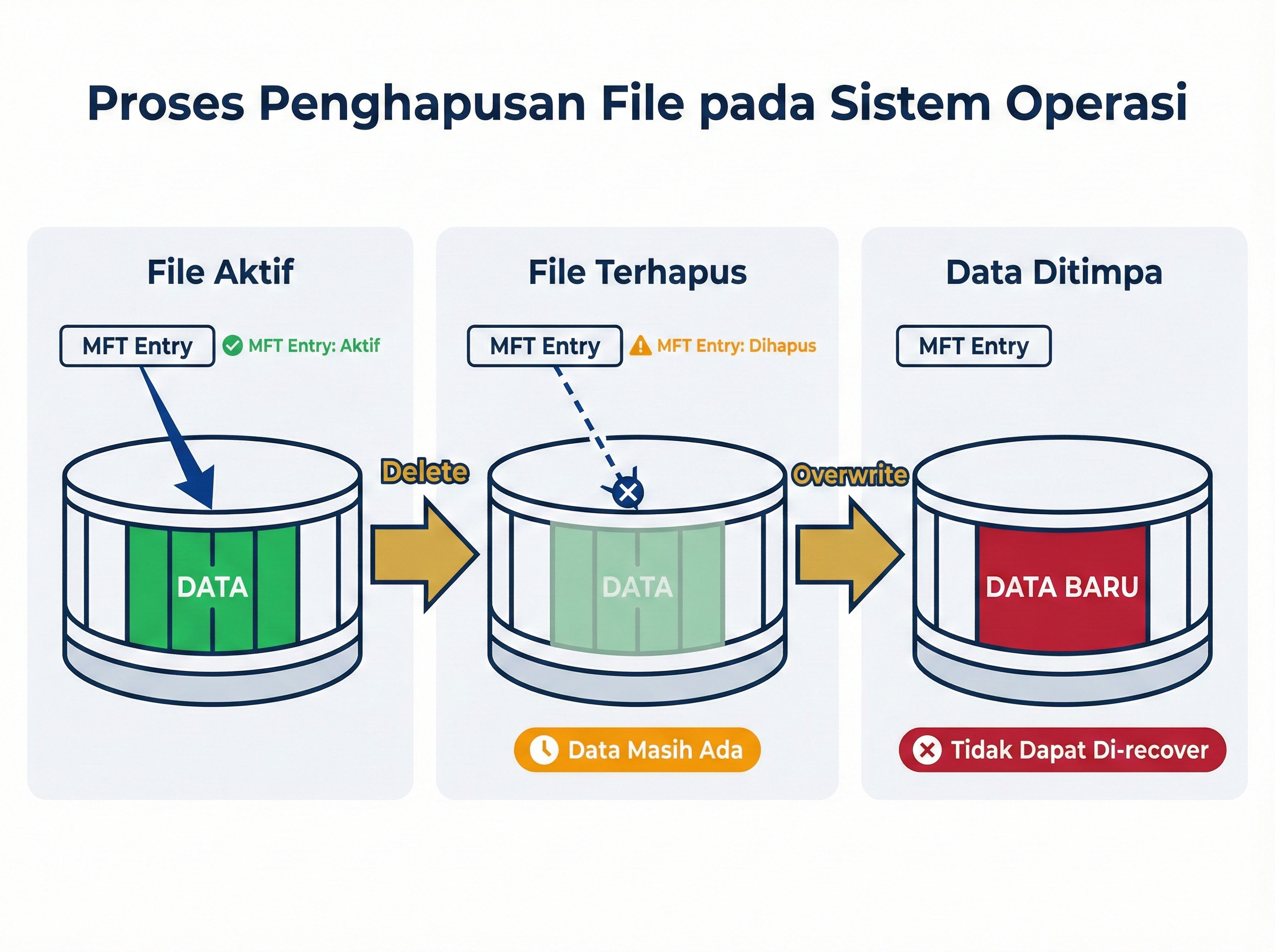
Gambar 9.1: Proses penghapusan file pada sistem operasi
1.2 Data Remnants dan Artifact Locations
Data Remnants adalah sisa-sisa data yang masih dapat ditemukan setelah file dihapus atau sistem direset. Lokasi-lokasi di mana data remnants dapat ditemukan:
A. Unallocated Space
Unallocated Space adalah area pada media penyimpanan yang tidak dialokasikan untuk file aktif mana pun, tetapi mungkin berisi data dari file yang telah dihapus.
- Area terbesar untuk menemukan deleted data
- Tidak ada file system metadata
- Memerlukan teknik file carving
- Size bisa sangat besar pada disk modern (TB)
B. Slack Space
Slack Space adalah ruang yang tidak terpakai di akhir cluster terakhir yang dialokasikan untuk sebuah file.
Ada dua jenis slack space:
- RAM Slack: Ruang antara akhir file dan akhir sektor
- File Slack: Ruang antara akhir sektor terakhir dan akhir cluster
Contoh Cluster (4 KB = 8 sektor @ 512 bytes):

File aktual: 2,100 bytes
├─ Sektor 1: 512 bytes (Data)
├─ Sektor 2: 512 bytes (Data)
├─ Sektor 3: 512 bytes (Data)
├─ Sektor 4: 512 bytes (Data)
├─ Sektor 5: 52 bytes (Data)
│  └─ RAM Slack: 460 bytes ← Dapat berisi data sensitif!
├─ Sektor 6: 512 bytes (File Slack) ← Data dari file sebelumnya
├─ Sektor 7: 512 bytes (File Slack)
└─ Sektor 8: 512 bytes (File Slack)

Total Slack Space: 460 + 1,536 = 1,996 bytes
C. Free Space
Area yang telah dialokasikan sebelumnya tetapi sekarang ditandai sebagai available. Berbeda dengan unallocated space, free space masih memiliki metadata yang menunjukkan pernah digunakan.
D. Bad Sectors
Sektor yang ditandai sebagai “bad” atau tidak dapat digunakan. Sering kali masih berisi data yang dapat dibaca dengan tools khusus.
Solved Problem 1 ⭐
Soal: File berukuran 3,000 bytes disimpan pada sistem dengan cluster size 4 KB (4,096 bytes). Hitung berapa besar slack space yang terbentuk!
Penyelesaian:
Step 1: Identifikasi parameter
- File size: 3,000 bytes
- Cluster size: 4,096 bytes
Step 2: Hitung space yang dialokasikan
- Space dialokasikan = 1 cluster = 4,096 bytes
Step 3: Hitung slack space
- Slack space = Cluster size - File size
- Slack space = 4,096 - 3,000 = 1,096 bytes
Jawaban: Slack space yang terbentuk adalah 1,096 bytes atau sekitar 26.8% dari cluster size. Space ini dapat berisi remnants dari file sebelumnya dan merupakan sumber penting untuk forensik digital.
Solved Problem 2 ⭐
Soal: Jelaskan mengapa file yang “dihapus” dengan Shift+Delete masih dapat di-recover!
Penyelesaian:
Step 1: Analisis proses Shift+Delete
Ketika file dihapus dengan Shift+Delete:
- File tidak masuk ke Recycle Bin
- Entry di MFT/FAT dihapus atau ditandai sebagai deleted
- Cluster ditandai sebagai available
Step 2: Identifikasi data yang tersisa
Yang masih ada:
- ✓ Data sebenarnya di cluster
- ✓ Mungkin sebagian metadata
- ✗ Pointer dari file system
Step 3: Mekanisme recovery
Recovery dimungkinkan karena:
- Data fisik masih ada di disk
- Struktur data masih intact
- Dapat diidentifikasi melalui file signatures
Jawaban: File yang dihapus dengan Shift+Delete masih dapat di-recovery karena hanya pointer dan metadata yang dihapus, sedangkan data sebenarnya masih tersimpan di cluster hingga area tersebut ditimpa oleh file baru. Tools forensik dapat men-scan unallocated space dan mengidentifikasi file berdasarkan signatures atau partial metadata.
1.3 Sistem File dan Recovery Implications
Setiap sistem file memiliki karakteristik berbeda yang mempengaruhi kemampuan recovery:
| Sistem File | Recovery Potential | Faktor Kunci | Tantangan |
|---|---|---|---|
| FAT32 | Sangat Tinggi | Simple structure, minimal metadata | Fragmentation, no journaling |
| NTFS | Tinggi | MFT records, journaling, $LogFile | Compressed files, TRIM on SSD |
| ext4 | Sedang-Tinggi | Journaling, inode structure | Deleted entries zeroed |
| APFS | Rendah-Sedang | Encryption by default, snapshots | Snapshot management, encryption |
| exFAT | Tinggi | Similar to FAT, no journaling | Limited metadata |
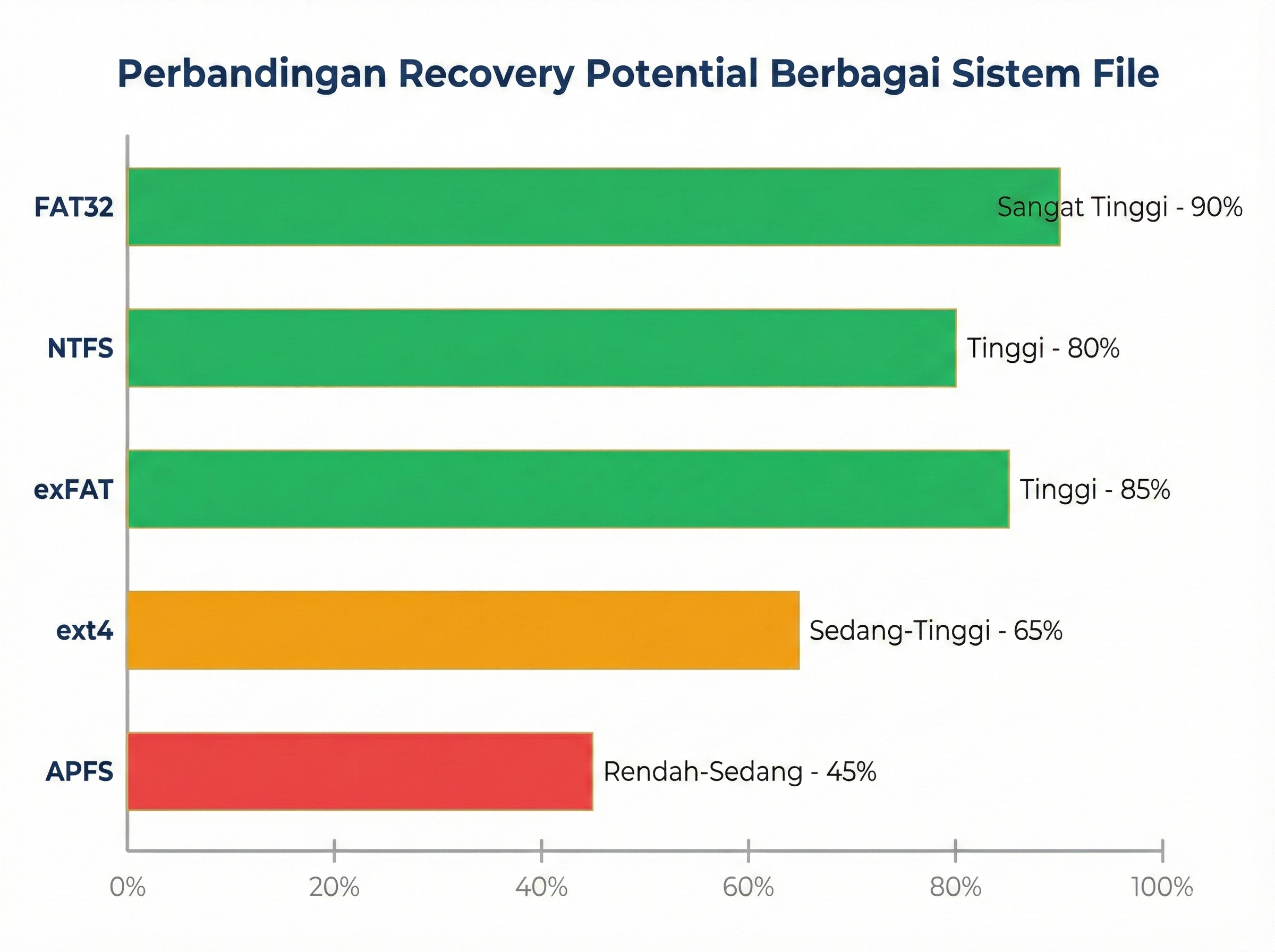
Gambar 9.2: Perbandingan recovery potential berbagai sistem file
Solved Problem 3 ⭐
Soal: Sistem file mana yang memberikan kemungkinan recovery tertinggi dan mengapa?
Penyelesaian:
Step 1: Evaluasi karakteristik setiap sistem file
FAT32:
- ✓ Struktur sederhana
- ✓ Metadata minimal
- ✓ Tidak ada journaling yang kompleks
- ✓ Entry deletion hanya menandai karakter pertama
NTFS:
- ✓ MFT records comprehensive
- ✓ $LogFile dan journaling
- ✗ Compressed/encrypted files
- ✗ TRIM pada SSD
ext4:
- ✓ Journaling membantu recovery
- ✗ Deleted entries di-zero
- ✗ Metadata dihapus agresif
Step 2: Ranking berdasarkan recovery potential
- FAT32 (90%)
- exFAT (85%)
- NTFS (80%)
- ext4 (65%)
- APFS (45%)
Jawaban: FAT32 memberikan kemungkinan recovery tertinggi karena:
- Struktur sangat sederhana - tidak ada overhead kompleks
- Minimal metadata deletion - hanya karakter pertama filename yang diubah
- Tidak ada journaling - tidak ada mekanisme tambahan yang menghapus data
- Widely documented - tools recovery sangat mature
Untuk investigasi forensik, FAT32 adalah sistem file paling “forensics-friendly” meskipun memiliki keterbatasan untuk penggunaan modern.
2. File Carving: Konsep dan Teknik
2.1 Definisi File Carving
File Carving adalah teknik untuk mengekstrak file dari unallocated space atau image forensik tanpa menggunakan metadata sistem file, melainkan berdasarkan struktur internal file (signatures, headers, footers).
File carving diperlukan ketika:
- File system metadata rusak atau tidak tersedia
- File terfragmentasi
- File telah dihapus sepenuhnya
- Disk di-format atau di-corrupt
- Investigasi pada raw binary data
2.2 File Signatures (Magic Bytes)
Setiap tipe file memiliki file signature atau magic bytes yang unik di header dan/atau footer file.
File Signatures Common
| File Type | Extension | Header (Hex) | Footer (Hex) | Offset |
|---|---|---|---|---|
| JPEG | .jpg, .jpeg | FF D8 FF |
FF D9 |
0 |
| PNG | .png | 89 50 4E 47 0D 0A 1A 0A |
49 45 4E 44 AE 42 60 82 |
0 |
| GIF | .gif | 47 49 46 38 (GIF8) |
00 3B |
0 |
25 50 44 46 (%PDF) |
25 25 45 4F 46 (%%EOF) |
0 | ||
| ZIP | .zip | 50 4B 03 04 (PK..) |
50 4B 05 06 |
0 |
| DOCX | .docx | 50 4B 03 04 |
50 4B 05 06 |
0 |
| RAR | .rar | 52 61 72 21 1A 07 (Rar!) |
- | 0 |
| MP4 | .mp4 | 00 00 00 XX 66 74 79 70 |
- | 0 |
| EXE | .exe | 4D 5A (MZ) |
- | 0 |
| SQLite | .db, .sqlite | 53 51 4C 69 74 65 20 66 6F 72 6D 61 74 20 33 |
- | 0 |
Contoh Analisis Header JPEG:
Offset      Hex                                             ASCII
--------    ----------------------------------------------  ----------------
00000000    FF D8 FF E0 00 10 4A 46 49 46 00 01 01 01 00   ÿØÿà..JFIF......
00000010    48 00 48 00 00 FF DB 00 43 00 03 02 02 03 02   H.H..ÿÛ.C.......
           │  │  │  │           │  │  │  │
           │  │  │  │           └──────────── JFIF identifier
           │  │  └─└──────────────────────── Application marker
           └─└───────────────────────────── JPEG SOI (Start of Image)
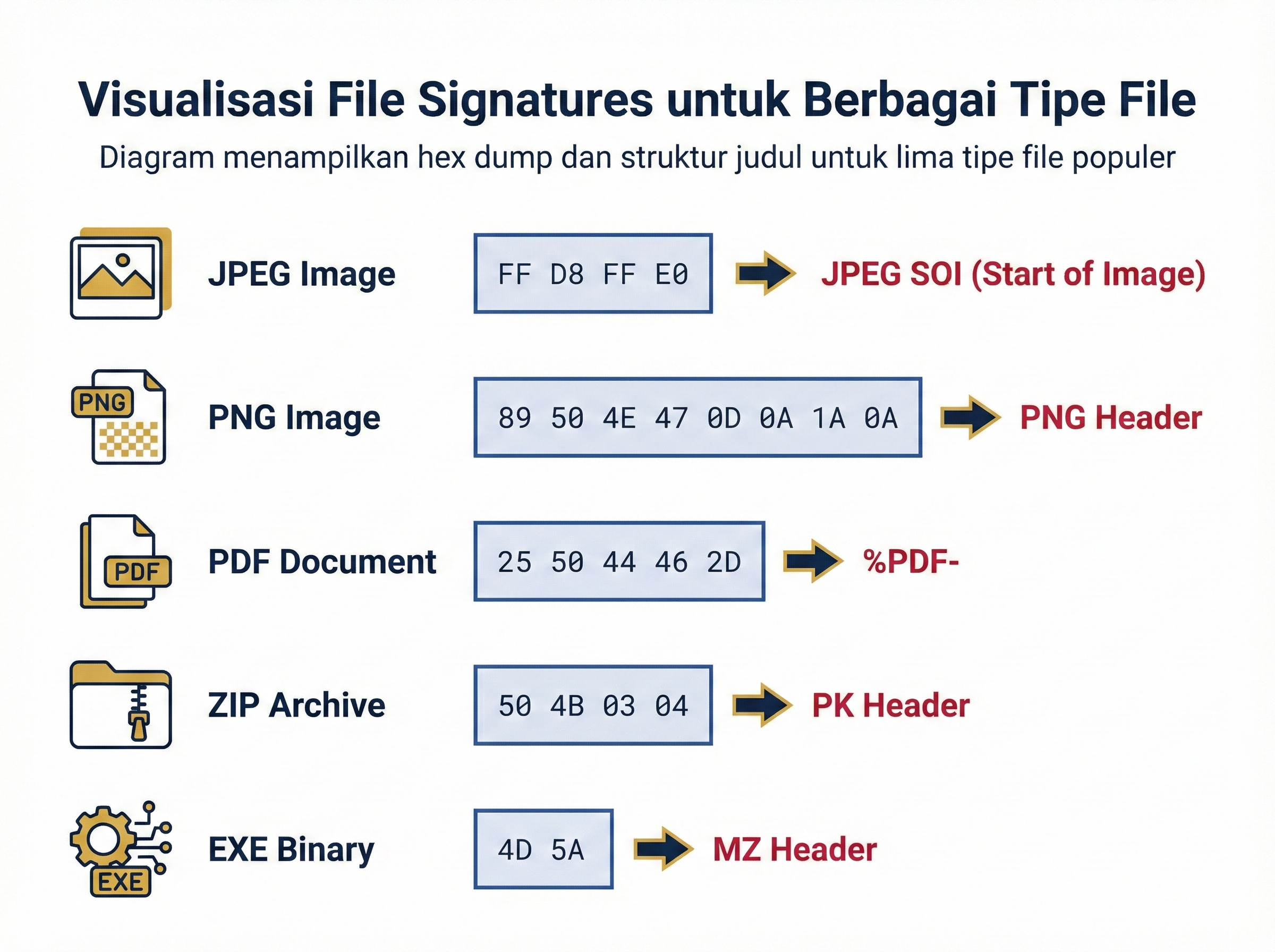
Gambar 9.3: Visualisasi file signatures untuk berbagai tipe file
Solved Problem 4 ⭐⭐
Soal: Diberikan hex dump berikut dari awal sebuah file. Identifikasi tipe file dan jelaskan analisis Anda!
00000000: 25 50 44 46 2D 31 2E 34 0A 25 E2 E3 CF D3 0A 0A
00000010: 31 20 30 20 6F 62 6A 0A 3C 3C 2F 54 79 70 65 2F
Penyelesaian:
Step 1: Analisis bytes awal
25 50 44 46 2D = %PDF-
31 2E 34       = 1.4
Step 2: Identifikasi signature
- Header:
25 50 44 46=%PDFdalam ASCII - Ini adalah PDF file signature
Step 3: Analisis struktur tambahan
25 50 44 46 2D 31 2E 34 = %PDF-1.4
Menunjukkan PDF versi 1.4
Step 4: Verifikasi dengan tabel signatures
| Byte Pattern | ASCII | Tipe File |
|---|---|---|
| 25 50 44 46 | PDF Document |
Jawaban: File ini adalah PDF Document versi 1.4. Identifikasi dilakukan berdasarkan:
- Header signature
25 50 44 46yang merupakan%PDFdalam ASCII - Version string
2D 31 2E 34yang merupakan-1.4 - Struktur object
31 20 30 20 6F 62 6A(1 0 obj) yang merupakan karakteristik PDF structure
Solved Problem 5 ⭐
Soal: Mengapa file carving berdasarkan extension saja tidak cukup dan harus menggunakan file signatures?
Penyelesaian:
Step 1: Identifikasi masalah dengan extension-based identification
Masalah:
- Extension dapat diubah dengan mudah
- File tanpa extension (dalam unallocated space)
- Extension mismatch (file .jpg yang sebenarnya .png)
- Malware yang menyamar dengan extension palsu
Step 2: Keuntungan signature-based identification
Keuntungan:
- Verifikasi struktur internal - tidak bisa dimanipulasi
- Bekerja tanpa metadata - langsung ke raw data
- Deteksi file mismatch - security analysis
- Recovery dari corrupted file system
Step 3: Contoh kasus
Skenario: File bernama document.pdf tetapi header: FF D8 FF E0 (JPEG)
- Extension says: PDF
- Signature says: JPEG
- Reality: Ini adalah JPEG dengan nama yang salah
Jawaban: File carving harus menggunakan signatures karena:
- Extension dapat dimanipulasi dengan mudah oleh attacker atau user
- Metadata tidak selalu tersedia pada unallocated space
- Signature adalah ground truth yang merepresentasikan struktur internal file
- Essential untuk security - mendeteksi file yang disembunyikan atau malware
Dalam forensik digital militer, signature-based identification adalah critical untuk mendeteksi:
- Exfiltrated documents dengan extension palsu
- Malware yang menyamar sebagai dokumen biasa
- Covert channels dalam file multimedia
2.3 Carving Techniques
A. Header/Footer Carving
Teknik paling umum yang mencari pasangan header dan footer yang sesuai.
Algorithm:
1. Scan image untuk header signature
2. Ketika ditemukan:
   a. Catat offset awal
   b. Scan forward untuk footer signature
   c. Extract data dari header ke footer
   d. Validasi extracted file
3. Continue scanning
Limitations:
- Tidak bekerja untuk file tanpa footer (EXE, DLL)
- Gagal untuk highly fragmented files
- Size validation diperlukan untuk menghindari false positives
B. Header/Size Carving
Untuk file yang tidak memiliki footer tetapi size information dalam header.
Contoh: PNG Files
PNG Header:
89 50 4E 47 0D 0A 1A 0A  00 00 00 0D 49 48 44 52
│                          │           │
└─ PNG Signature           │           └─ IHDR chunk
                           └─ Chunk length (13 bytes)
Algorithm:
1. Scan untuk header signature
2. Parse header untuk size information
3. Extract berdasarkan calculated size
4. Validate dengan footer (jika ada)
C. Block-based Carving
Untuk file yang sangat fragmented, carving dilakukan per block dan kemudian di-reassemble.
Challenges:
- Order reconstruction
- Missing blocks
- Computational complexity
D. Statistical Carving
Menggunakan analisis statistik untuk mengidentifikasi file boundaries tanpa signatures.
- Entropy analysis
- N-gram analysis
- Machine learning classification
Solved Problem 6 ⭐⭐
Soal: Sebuah PNG file memiliki header berikut. Hitung total size file yang harus di-extract!
89 50 4E 47 0D 0A 1A 0A  00 00 00 0D 49 48 44 52
00 00 02 00 00 00 01 80  08 02 00 00 00 ...
Width: 512 pixels, Height: 384 pixels, Bit depth: 8, Color type: 2 (RGB)
Penyelesaian:
Step 1: Parse PNG header
89 50 4E 47 0D 0A 1A 0A = PNG signature
00 00 00 0D             = IHDR chunk length (13 bytes)
49 48 44 52             = "IHDR"
00 00 02 00             = Width (512)
00 00 01 80             = Height (384)
08                      = Bit depth (8)
02                      = Color type (RGB = 3 channels)
Step 2: Hitung raw image data size
Pixels       = Width × Height = 512 × 384 = 196,608 pixels
Bytes/pixel  = 3 (RGB) × 1 (8-bit) = 3 bytes
Raw data     = 196,608 × 3 = 589,824 bytes
Step 3: Estimasi compressed size
PNG menggunakan DEFLATE compression (ratio typically 2:1 to 4:1)
Estimated compressed = 589,824 / 3 ≈ 196,608 bytes
Step 4: Tambahkan overhead
PNG overhead:
- Signature:    8 bytes
- IHDR chunk:   25 bytes (13 + 12)
- IDAT chunks:  ~196,608 bytes
- IEND chunk:   12 bytes
Total:          ~196,653 bytes
Jawaban: File PNG ini akan berukuran sekitar 197 KB (196,653 bytes). Untuk carving purposes:
- Minimum size: 8 (signature) + 25 (IHDR) + 12 (IEND) = 45 bytes
- Expected size: ~197 KB
- Maximum reasonable size: ~590 KB (jika poorly compressed)
Carving tools harus menggunakan footer 49 45 4E 44 AE 42 60 82 (IEND chunk) untuk menentukan exact endpoint.
3. Recovery Tools dan Teknik
3.1 Recuva - User-Friendly Recovery
Recuva adalah tool recovery yang user-friendly untuk Windows, cocok untuk quick recovery dari deleted files.
Features:
- Deep scan capability
- Preview before recovery
- Secure deletion
- Support berbagai file systems
Workflow:
1. Launch Recuva
2. Pilih file type (atau All Files)
3. Pilih location (specific folder atau entire drive)
4. Enable Deep Scan untuk better results
5. Scan dan preview results
6. Select files to recover
7. Choose recovery destination (JANGAN ke drive yang sama!)
Recovery Success Indicators:
| Status | Icon | Meaning | Recovery Chance |
|---|---|---|---|
| Excellent | 🟢 | File fully recoverable | 95-100% |
| Good | 🟡 | Partially overwritten | 60-90% |
| Poor | 🔴 | Heavily overwritten | 10-50% |
| Unrecoverable | ⚫ | Completely overwritten | <5% |
Solved Problem 7 ⭐
Soal: Mengapa saat melakukan file recovery, kita TIDAK boleh menyimpan hasil recovery ke drive yang sama dengan sumber?
Penyelesaian:
Step 1: Analisis risiko
Ketika melakukan recovery:
- Tool akan menulis recovered files ke destination
- Jika destination = source drive, akan menulis ke unallocated space
- Unallocated space adalah tempat file yang akan di-recover berada!
- Proses recovery akan menimpa data yang sedang di-recover
Step 2: Skenario disaster
Scenario:
- 100 deleted photos di drive C:
- Start recovery ke C:\Recovered\
- Photo 1-20: Recovered successfully
- Photo 21-80: Overwritten by recovered photo 1-20
- Photo 81-100: Incomplete recovery
Result: Net loss data!
Step 3: Best practice
✓ CORRECT: Recovery dari C: ke D: (external drive) ✗ WRONG: Recovery dari C: ke C:\Recovered\
Jawaban: Kita TIDAK boleh menyimpan hasil recovery ke drive yang sama karena:
- Overwrite risk - hasil recovery akan menulis ke unallocated space tempat deleted files berada
- Data loss cascade - recovery file awal akan merusak file selanjutnya
- Integrity violation - merusak bukti forensik
- Forensic best practice - write-once principle untuk preservation
Best Practice Forensik:
- Buat forensic image terlebih dahulu (read-only)
- Recovery dari image, bukan dari original media
- Save results ke external storage
3.2 PhotoRec - Powerful Cross-Platform Carving
PhotoRec adalah tool open-source powerful untuk file carving yang bekerja pada berbagai platform dan file systems.
Key Features:
- Signature-based carving
- Ignores file system - works on raw data
- 500+ file formats supported
- Cross-platform (Windows, Linux, Mac)
- Free and open-source
Supported File Types (Partial List):
| Category | Formats |
|---|---|
| Images | jpg, png, gif, bmp, tiff, raw (cr2, nef, dng) |
| Video | mp4, avi, mov, mkv, flv, wmv |
| Audio | mp3, wav, flac, ogg, m4a |
| Documents | pdf, doc, docx, xls, xlsx, ppt, pptx |
| Archives | zip, rar, 7z, tar, gz |
| Databases | sqlite, mdb, pst |
| Executables | exe, dll, elf |
Command Line Usage:
# Interactive mode
photorec /dev/sda1

# Command line mode
photorec /d /path/to/recovery/dir /log /dev/sda1

# Specify file types
photorec /d /path/to/recovery/dir /log /cmd /dev/sda1 fileopt,jpg,enable,fileopt,png,enable,search
Recovery Process:
┌─────────────────────────────────────────┐
│ 1. Select Source                        │
│    - Physical drive                     │
│    - Partition                          │
│    - Image file (.dd, .E01)             │
├─────────────────────────────────────────┤
│ 2. Select File System Type              │
│    - FAT/NTFS/ext2/ext3/etc             │
│    - Whole (ignore file system)         │
├─────────────────────────────────────────┤
│ 3. Select Search Space                  │
│    - Free: Unallocated space only       │
│    - Whole: Entire partition            │
├─────────────────────────────────────────┤
│ 4. Select Destination                   │
│    - MUST be different drive!           │
├─────────────────────────────────────────┤
│ 5. Start Recovery                       │
│    - Monitor progress                   │
│    - Review log file                    │
└─────────────────────────────────────────┘
Solved Problem 8 ⭐⭐
Soal: PhotoRec recovered 500 files dari USB drive 8GB. Hasil recovery menunjukkan struktur folder recup_dir.1, recup_dir.2, dst. Mengapa PhotoRec tidak mempertahankan struktur folder dan nama file asli?
Penyelesaian:
Step 1: Understand PhotoRec’s carving methodology
PhotoRec menggunakan signature-based carving:
- Scan raw sectors untuk file signatures
- Tidak menggunakan file system metadata
- Extract berdasarkan header/footer patterns
- Metadata (filename, folder structure, timestamps) tidak di-recover
Step 2: Analisis file system metadata
File system metadata yang hilang:
MFT/FAT Entry contains:
├─ Filename ←──────────── NOT RECOVERED
├─ Directory path ←────── NOT RECOVERED
├─ Timestamps ←────────── NOT RECOVERED
├─ Permissions ←────────── NOT RECOVERED
└─ Data clusters ←──────── RECOVERED (via signature)
Step 3: PhotoRec recovery structure
Destination:
├─ recup_dir.1/
│   ├─ f0000001.jpg  ← Generic name
│   ├─ f0000002.pdf
│   └─ ...           ← Up to 500 files per dir
├─ recup_dir.2/
│   ├─ f0000501.png
│   └─ ...
└─ report.xml        ← Recovery report
Step 4: Keuntungan dan keterbatasan
Keuntungan:
- ✓ Bekerja tanpa file system
- ✓ Recover dari corrupted/formatted disk
Keterbatasan:
- ✗ No original filename
- ✗ No folder structure
- ✗ Manual reorganization required
Jawaban: PhotoRec tidak mempertahankan struktur folder dan nama file asli karena:
- Signature-based carving - hanya membaca raw sectors tanpa menggunakan file system metadata
- Metadata terpisah - filename, directory path, dan timestamps tersimpan di MFT/FAT, bukan di file content
- Generic naming - karena original filename tidak tersedia, PhotoRec menggunakan sequential numbering (
f0000001,f0000002, dst.) - Flat structure - semua recovered files disimpan di
recup_dir.Xfolders untuk organization
Trade-off:
- Lost: Original metadata (name, path, timestamps)
- Gained: Ability to recover dari completely corrupted file systems
Untuk investigation purposes:
- Use file type untuk initial organization
- Use content analysis untuk identification
- Use timeline correlation dengan evidence lain
3.3 Foremost dan Scalpel - Advanced Carving Tools
Foremost
Foremost adalah command-line carving tool yang originally developed oleh US Air Force.
Installation (WSL Ubuntu):
sudo apt update
sudo apt install foremost
Configuration File: /etc/foremost.conf
# Contoh configuration
jpg     y   150000000   \xff\xd8\xff\xe0\x00\x10    \xff\xd9
png     y   10000000    \x89\x50\x4e\x47            \x49\x45\x4e\x44\xae\x42\x60\x82
pdf     y   10000000    \x25\x50\x44\x46            \x25\x45\x4f\x46
Format: <type> <case_sensitive> <max_size> <header> <footer>
Usage:
# Basic recovery
foremost -t jpg,png,pdf -i evidence.dd -o /output/dir

# All file types
foremost -t all -i /dev/sdb1 -o /output/dir

# Custom config
foremost -c custom.conf -i image.dd -o /output/dir

# Verbose mode
foremost -v -t all -i evidence.dd -o /output/dir
Scalpel
Scalpel adalah fork dari Foremost dengan performa lebih baik untuk large images.
Installation:
sudo apt install scalpel
Configuration: /etc/scalpel/scalpel.conf
# Scalpel config (similar to Foremost)
jpg     y   200000000   \xff\xd8\xff    \xff\xd9
png     y   20000000    \x89PNG         IEND\xae\x42\x60\x82
zip     y   50000000    PK\x03\x04      PK\x05\x06
Key Differences from Foremost:
| Feature | Foremost | Scalpel |
|---|---|---|
| Threading | Single-threaded | Multi-threaded |
| Speed | Slower | Faster (2-3x) |
| Memory | Lower | Higher |
| Preview | No | Yes (with -p) |
| Best For | Small images | Large images |
Usage:
# Basic carving
scalpel -b -o /output/dir evidence.dd

# Specific file types
scalpel -b -c custom.conf -o /output/dir evidence.dd

# Preview mode (no extraction)
scalpel -p -o /output/dir evidence.dd

# Verbose
scalpel -b -v -o /output/dir evidence.dd
Solved Problem 9 ⭐⭐
Soal: Anda memiliki forensic image sebesar 500 GB. Tool mana yang lebih cocok: Foremost atau Scalpel? Jelaskan reasoning Anda!
Penyelesaian:
Step 1: Analisis karakteristik image
Image size: 500 GB
Expected carving time:
- Single-threaded: ~20-30 hours
- Multi-threaded: ~8-10 hours
Step 2: Bandingkan tools
| Kriteria | Foremost | Scalpel | Winner |
|---|---|---|---|
| Threading | Single | Multi | Scalpel |
| Speed | ~100 MB/s | ~250 MB/s | Scalpel |
| Memory usage | ~100 MB | ~300 MB | Foremost |
| Preview capability | No | Yes | Scalpel |
Step 3: Calculate time estimates
Foremost:
500 GB / 100 MB/s = 5,000 seconds / 60 = ~83 minutes per pass
With overhead: ~2-3 hours

Scalpel:
500 GB / 250 MB/s = 2,000 seconds / 60 = ~33 minutes per pass
With overhead: ~1 hour
Step 4: Rekomendasi
Untuk 500 GB image: SCALPEL
Alasan:
- Multi-threading - memanfaatkan CPU multi-core modern
- 2-3x faster - critical untuk large images
- Preview mode - dapat dry-run sebelum full carving
- Memory usage tidak menjadi issue untuk modern systems
Jawaban: Untuk forensic image 500 GB, Scalpel adalah pilihan lebih baik karena:
- Performance: Multi-threaded processing memberikan 2-3x speed improvement
- Foremost: ~2-3 hours
- Scalpel: ~1 hour
-
Scalability: Designed untuk large images dengan efficient memory management
-
Preview capability: Dapat melakukan dry-run tanpa extraction (flag
-p) - Hardware utilization: Memanfaatkan multiple CPU cores
Exception: Gunakan Foremost jika:
- Memory sangat terbatas (<2 GB RAM)
- Single-core processor
- Small images (<10 GB)
Best Practice:
- Untuk large-scale forensic investigations, invest in high-performance workstation:
- Multi-core CPU (8+ cores)
- 16+ GB RAM
- SSD untuk output directory
3.4 Autopsy File Carver
Autopsy memiliki built-in file carving capability yang terintegrasi dengan case management.
Carving Modules:
Ingest Modules:
├─ File Type Identification
├─ Extension Mismatch Detector
├─ Photorec Carver
└─ Tika MIME Type Detection
Autopsy Carving Workflow:
1. Add Data Source ke Case
   └─ Select disk image atau physical device

2. Configure Ingest Modules
   ├─ Enable "Photorec Carver"
   ├─ Enable "File Type Identification"
   └─ Enable "Extension Mismatch Detector"

3. Run Ingest (Automatic carving)
   └─ Monitor progress di Ingest Inbox

4. Review Results
   ├─ Views > File Types > By Extension
   ├─ Views > File Types > By MIME Type
   └─ Tags > Carved Files

5. Export Carved Files
   └─ Right-click > Extract File(s)
Advantages over Command-Line Tools:
| Feature | Command-Line | Autopsy |
|---|---|---|
| GUI | No | Yes |
| Integration | Separate | Unified |
| Timeline | Manual | Automatic |
| Reporting | Manual | Built-in |
| Hash Database | External | Integrated |
| Tagging | No | Yes |
| Case Management | No | Yes |
Solved Problem 10 ⭐
Soal: Dalam konteks investigasi forensik militer, apa keuntungan menggunakan Autopsy dibanding command-line tools (PhotoRec, Foremost, Scalpel)?
Penyelesaian:
Step 1: Identifikasi kebutuhan investigasi militer
Kebutuhan:
- Chain of custody documentation
- Comprehensive reporting
- Multi-evidence correlation
- Audit trail
- Team collaboration
Step 2: Evaluasi Autopsy capabilities
Case Management:
Case Information:
├─ Case name, number
├─ Investigator details
├─ Organization
├─ Notes dan documentation
└─ Multiple data sources
Integrated Workflow:
Autopsy Workflow:
1. Create case ←────────── Documentation
2. Add evidence ←────────── Chain of custody
3. Automated analysis ←──── Consistency
4. Tagging & notes ←─────── Investigation tracking
5. Timeline ←──────────────── Correlation
6. Generate report ←─────── Presentation
Step 3: Perbandingan praktis
Command-Line Approach:
# Step 1: Carve with PhotoRec
photorec evidence.dd

# Step 2: Organize results (manual)
organize-recovered-files.sh

# Step 3: Document findings (manual)
vim investigation-notes.txt

# Step 4: Create report (manual)
generate-report.py

# Step 5: Maintain chain of custody (manual)
update-custody-log.xlsx
Autopsy Approach:
All steps integrated in single platform:
- Automatic documentation
- Built-in reporting
- Integrated timeline
- Tag-based organization
Jawaban: Untuk investigasi forensik militer, Autopsy lebih cocok karena:
1. Chain of Custody Integration
- Automatic documentation dari setiap action
- Built-in case information management
- Audit trail lengkap
2. Professional Reporting
- Generate comprehensive reports untuk briefing
- Export evidence dengan documentation
- Court-ready format
3. Timeline Analysis
- Automatic timeline reconstruction
- Correlation dengan evidence lain
- Visualization capabilities
4. Team Collaboration
- Multi-investigator support
- Centralized case management
- Consistent methodology
5. Military-Specific Benefits
- Memenuhi DoD requirements untuk documentation
- Support untuk classified investigation
- Integration dengan existing forensic workflows
Command-line tools (PhotoRec, Scalpel) tetap valuable untuk:
- Quick recovery tasks
- Scripting dan automation
- Low-resource environments
- Specific carving scenarios
Best Practice: Gunakan hybrid approach:
- Autopsy untuk primary investigation
- Command-line tools untuk specific tasks
- Document semua actions dalam case management
4. Manual Carving dengan Hex Editor
4.1 HxD Hex Editor
HxD adalah free hex editor untuk Windows yang powerful untuk manual analysis dan carving.
Key Features:
- Open large files (GB+)
- Search & replace (hex/text)
- Comparison tools
- Checksum calculation
- Data inspector
- Template support
Interface Overview:
┌───────────────────────────────────────────────────────┐
│  Offset   │  Hex View              │  ASCII View      │
├───────────┼────────────────────────┼──────────────────┤
│ 00000000  │ FF D8 FF E0 00 10 4A   │ ÿØÿà..J          │
│ 00000010  │ 46 49 46 00 01 01 01   │ FIF.....         │
│ 00000020  │ 00 48 00 48 00 00 FF   │ .H.H...ÿ         │
└───────────┴────────────────────────┴──────────────────┘
           ↑                          ↑
      Hexadecimal                   ASCII
Manual Carving Workflow:
Step 1: Open Image/Drive
├─ File > Open
├─ Select disk image atau physical drive
└─ Read-only mode (recommended)

Step 2: Search for File Signature
├─ Search > Find (Ctrl+F)
├─ Search type: Hex values
├─ Enter signature: FF D8 FF E0 (JPEG)
└─ Find All untuk multiple occurrences

Step 3: Identify File Boundaries
├─ Mark header offset
├─ Search for footer: FF D9 (JPEG)
├─ Calculate size
└─ Verify integrity

Step 4: Extract File
├─ Select byte range
├─ Edit > Copy
├─ File > New
├─ Edit > Paste
└─ Save extracted file

Step 5: Validate
├─ Open dengan appropriate viewer
├─ Check for corruption
└─ Document findings
Solved Problem 11 ⭐⭐⭐
Soal: Anda menemukan hex pattern berikut dalam unallocated space. Extract file JPEG secara manual dan hitung size-nya!
Offset      Hex Dump
0x00000000  FF D8 FF E0 00 10 4A 46 49 46 00 01 01 01 00 48
0x00000010  00 48 00 00 FF DB 00 43 00 03 02 02 03 02 02 03
...
[many lines]
...
0x00012450  B2 C1 A4 8F 23 1A 45 67 FF D9 00 00 00 00 00 00
Penyelesaian:
Step 1: Identifikasi JPEG signatures
Header:
FF D8 FF E0 = JPEG SOI (Start of Image)
4A 46 49 46 = "JFIF"
✓ Valid JPEG header di offset 0x00000000
Footer:
FF D9 = JPEG EOI (End of Image)
✓ Valid JPEG footer di offset 0x00012450 + 0x09 = 0x00012459
Step 2: Calculate file size
Header offset:  0x00000000
Footer offset:  0x00012459
Footer marker:  FF D9 (2 bytes)

File ends at:   0x00012459 + 0x02 = 0x0001245B

File size = End - Start
         = 0x0001245B - 0x00000000
         = 0x0001245B
         = 74,843 bytes (decimal)
         = 73.09 KB
Step 3: Manual extraction steps
HxD Procedure:
1. Goto offset 0x00000000
2. Begin Selection
3. Goto offset 0x0001245A (last byte sebelum footer FF D9)
4. Select Through (includes footer)
5. Edit > Copy
6. File > New
7. Edit > Paste
8. Save As: recovered_image_001.jpg
Step 4: Verification
Verification steps:
1. Check file size: 74,843 bytes ✓
2. Verify header: FF D8 FF E0 ✓
3. Verify footer: FF D9 ✓
4. Open dengan image viewer ✓
5. Calculate hash: SHA-256 untuk documentation
Jawaban:
File Size: 74,843 bytes (73.09 KB)
Extraction Range:
- Start: 0x00000000
- End: 0x0001245B (inclusive of footer)
- Length: 0x0001245B bytes
Validation:
File: recovered_image_001.jpg
Size: 74,843 bytes
Type: JPEG image
Header: FF D8 FF E0 (JFIF)
Footer: FF D9 (EOI)
Status: ✓ Valid JPEG file
Documentation untuk Chain of Custody:
EXTRACTED FILE RECORD
======================
Source: [Source image/drive]
Location: Unallocated space, offset 0x00000000
File Type: JPEG image
Size: 74,843 bytes (73.09 KB)
Extracted By: [Investigator Name]
Date/Time: [Timestamp]
Hash (SHA-256): [Calculate hash]
Notes: Complete JPEG file with valid header/footer
Critical Steps:
- ✓ Always include footer dalam extraction
- ✓ Verify signature sebelum extraction
- ✓ Test recovered file
- ✓ Document semua findings
- ✓ Calculate hash untuk integrity
4.2 Advanced Hex Editor Techniques
A. Recognizing File Structures
JPEG Structure:
FF D8 FF E0          ← SOI + APP0 marker
  00 10              ← APP0 length
  4A 46 49 46 00     ← "JFIF"
  01 01              ← Version
  ...
  [Image data with multiple segments]
  ...
FF D9                ← EOI marker
PNG Structure:
89 50 4E 47 0D 0A 1A 0A    ← PNG signature
  00 00 00 0D              ← Chunk length
  49 48 44 52              ← "IHDR"
  [Width, Height, etc]
  ...
  [IDAT chunks with image data]
  ...
  00 00 00 00              ← Chunk length
  49 45 4E 44              ← "IEND"
  AE 42 60 82              ← IEND CRC
PDF Structure:
25 50 44 46 2D 31 2E 34    ← "%PDF-1.4"
  ...
  [PDF objects and streams]
  ...
25 25 45 4F 46              ← "%%EOF"
B. Detecting Fragmentation
Signs of fragmented files:
- Multiple headers without footers
- Incomplete structures
- Size mismatch
- Corruption in middle sections
Fragmented JPEG Detection:
Offset 0x00000000: FF D8 FF E0 (SOI) ✓
Offset 0x00001000: FF D8 FF E0 (SOI again) ← Fragment!
                   Should be FF DA (SOS) or FF D9 (EOI)
C. Carving Encrypted Files
Encrypted files memiliki characteristics:
- High entropy (random-looking data)
- No recognizable patterns
- Possible container signatures (TrueCrypt, VeraCrypt)
Example: TrueCrypt Volume
54 52 55 45 43 52 59 50 54    ← "TRUECRYPT"
  ...
  [High entropy data]
  ...
Cannot carve internal structure without decryption!
Solved Problem 12 ⭐⭐⭐
Soal: Dalam investigasi insiden keamanan di Kodam Jaya, ditemukan hex pattern berikut di USB drive seorang prajurit yang dicurigai. Analisis pattern ini dan identifikasi file type beserta implikasi keamanannya!
00000000: 50 4B 03 04 14 00 01 00  63 00 8D 51 4C 55 AA BB
00000010: CC DD EE FF 00 11 22 33  44 55 66 77 88 99 AA BB
[... many lines of random-looking bytes ...]
00012450: 50 4B 01 02 14 00 14 00  01 00 63 00 8D 51 4C 55
Penyelesaian:
Step 1: Identifikasi file signature
50 4B 03 04 = ZIP file header ("PK..")
Ini adalah ZIP archive atau ZIP-based format (DOCX, XLSX, APK, PPTX, dll).
Step 2: Analisis encryption indicators
50 4B 03 04              ← ZIP signature
  14 00                  ← Version needed
  01 00                  ← General purpose bit flag
      ^^^
      └──────────────── Bit 0 set = ENCRYPTED!

Bit flag 0x0001 = 0000 0001 binary
                       └───────── Bit 0: Encryption flag
Step 3: Analyze data pattern
Random-looking bytes:
AA BB CC DD EE FF 00 11 22 33 44 55 66 77 88 99 AA BB
High entropy = consistent dengan encrypted data.
Step 4: Identify central directory
50 4B 01 02 = Central directory file header
Confirms valid ZIP structure.
Step 5: Security Implications untuk konteks militer
Temuan:
- File type: Password-protected ZIP archive
- Encryption: Likely AES-256 (based on flags)
- Location: USB drive personnel militer
- Context: Suspected security incident
Red Flags:
- 🚨 Encrypted archive di device personal
- 🚨 Tidak terdaftar dalam inventory
- 🚨 High entropy (strong encryption)
- 🚨 Context: Security incident investigation
Jawaban:
File Type: Password-protected ZIP archive (atau ZIP-based format seperti DOCX)
Technical Details:
File Signature: 50 4B 03 04 (ZIP/PK format)
Encryption: YES (bit flag 0x0001 set)
Encryption Method: Likely AES-256
Size: ~74 KB (approximate dari offset range)
Status: ENCRYPTED - Cannot carve internal contents
Security Implications (Konteks Militer):
IMMEDIATE CONCERNS:
- Data Exfiltration Risk: Encrypted archive di removable media dapat mengindikasikan:
- Transfer dokumen rahasia
- Bypass DLP (Data Loss Prevention) systems
- Covert data channel
- Policy Violation: TNI biasanya memiliki policy strict tentang:
- Penggunaan removable media
- Encrypted containers di device personal
- Data classification handling
- Insider Threat Indicator: Kombinasi faktor:
- Encrypted file di personal USB
- Security incident context
- Concealment attempt
RECOMMENDED ACTIONS:
IMMEDIATE:
├─ Preserve evidence (forensic image USB)
├─ Document chain of custody
├─ Report ke security officer
└─ Initiate formal investigation

INVESTIGATION:
├─ Interview subject
├─ Request password (with proper authority)
├─ Examine device registration logs
├─ Check network exfiltration logs
└─ Correlate dengan access logs

TECHNICAL ANALYSIS:
├─ Attempt password recovery
│   ├─ Hashcat/John the Ripper
│   ├─ Dictionary attack
│   └─ Known password patterns
├─ Examine metadata
│   ├─ Creation time
│   ├─ Modification time
│   └─ Tool signatures
└─ Context analysis
    ├─ Other files pada USB
    ├─ Timeline correlation
    └─ Subject's role & access
LEGAL CONSIDERATIONS:
- Encrypted files di device personal dapat fall under:
- UU ITE Pasal 30-32 (Unauthorized access)
- UU Pertahanan (Military secrets)
- Internal regulations
CONCLUSION: File ini adalah HIGH PRIORITY EVIDENCE yang memerlukan:
- Immediate preservation
- Formal investigation
- Possible involvement dari legal authority
- Correlation dengan intelligence data
Cannot proceed dengan carving tanpa decryption, requires:
- Legal authorization untuk password extraction
- Subject cooperation atau warrant
- Specialized password recovery resources
5. Database Carving
5.1 SQLite Database Recovery
SQLite adalah embedded database yang umum digunakan di:
- Mobile apps (Android/iOS)
- Browsers (Firefox, Chrome)
- Desktop applications
- IoT devices
SQLite Structure:
SQLite File Format:
┌─────────────────────────────────────┐
│ File Header (100 bytes)             │
│ - Magic: "SQLite format 3"          │
│ - Page size                         │
│ - Database size in pages            │
├─────────────────────────────────────┤
│ Page 1: Database Schema             │
│ - sqlite_master table               │
│ - CREATE TABLE statements           │
├─────────────────────────────────────┤
│ Pages 2-N: Data Pages               │
│ - B-tree structures                 │
│ - Actual table data                 │
└─────────────────────────────────────┘
SQLite Signature:
53 51 4C 69 74 65 20 66 6F 72 6D 61 74 20 33 00
"S  Q  L  i  t  e     f  o  r  m  a  t     3 \0"
Recovery Workflow:
# 1. Carve SQLite databases
foremost -t sqlite -i evidence.dd -o /output

# 2. Validate recovered databases
sqlite3 recovered_db.sqlite "PRAGMA integrity_check;"

# 3. Extract schema
sqlite3 recovered_db.sqlite ".schema"

# 4. Query data
sqlite3 recovered_db.sqlite "SELECT * FROM table_name;"

# 5. Export to CSV
sqlite3 -csv recovered_db.sqlite "SELECT * FROM table_name;" > output.csv
Tools for SQLite Analysis:
| Tool | Purpose | Platform |
|---|---|---|
| DB Browser for SQLite | GUI database viewer | Windows/Linux/Mac |
| sqlite3 | Command-line shell | All |
| SQLite Analyzer | Database structure analysis | Windows |
| Undark | Recover deleted SQLite records | Linux |
Solved Problem 13 ⭐⭐
Soal: Ditemukan file dengan header berikut dalam evidence image. Identifikasi database type dan jelaskan cara mengekstrak informasi dari database tersebut!
00000000: 53 51 4C 69 74 65 20 66 6F 72 6D 61 74 20 33 00
00000010: 10 00 01 01 00 40 20 20 00 00 00 03 00 00 00 02
Penyelesaian:
Step 1: Identify database signature
53 51 4C 69 74 65 20 66 6F 72 6D 61 74 20 33 00
= "SQLite format 3\0"
✓ This is a SQLite database file (version 3)
Step 2: Parse header information
Byte 16-17: 10 00 = Page size (0x1000 = 4096 bytes)
Byte 18:    01    = Write format (1 = legacy)
Byte 19:    01    = Read format (1 = legacy)
Byte 20:    00    = Reserved space
Byte 28-31: 00 00 00 03 = Database size in pages (3 pages)
Byte 32-35: 00 00 00 02 = First freelist trunk page (page 2)
Step 3: Extraction procedure
# Step A: Extract database file
# (Using hex editor atau carving tool)

# Step B: Validate integrity
sqlite3 extracted.db "PRAGMA integrity_check;"
# Expected: "ok"

# Step C: Extract schema
sqlite3 extracted.db ".schema"

# Example output:
# CREATE TABLE users (
#   id INTEGER PRIMARY KEY,
#   username TEXT,
#   password_hash TEXT,
#   last_login TIMESTAMP
# );

# Step D: Query data
sqlite3 extracted.db "SELECT * FROM users;"

# Step E: Export results
sqlite3 -header -csv extracted.db "SELECT * FROM users;" > users_export.csv
Step 4: Forensic analysis techniques
-- Examine table struktur
.tables

-- Count records
SELECT COUNT(*) FROM users;

-- Check for deleted records (if available)
-- Requires specialized tools like Undark

-- Export timeline
SELECT
  datetime(last_login, 'unixepoch') as login_time,
  username
FROM users
ORDER BY last_login DESC;
Jawaban:
Database Type: SQLite version 3
Technical Details:
Signature: 53 51 4C 69 74 65 20 66 6F 72 6D 61 74 20 33
Page Size: 4096 bytes (0x1000)
Database Size: 3 pages = 12,288 bytes
Format: Legacy (Write: 1, Read: 1)
Extraction Procedure:
Step 1: Identify & Extract
├─ Locate header: 53 51 4C 69 74 65...
├─ Calculate size: 3 pages × 4096 = 12,288 bytes
├─ Extract complete database
└─ Save as .sqlite or .db

Step 2: Validate
├─ PRAGMA integrity_check ← Must return "ok"
├─ .schema ← View table structures
└─ Check for corruption

Step 3: Forensic Analysis
├─ Extract all tables
├─ Timeline reconstruction
├─ Deleted record recovery (Undark)
└─ Correlation dengan evidence lain

Step 4: Documentation
├─ Table schemas
├─ Record counts
├─ Extracted data (CSV)
└─ Timeline analysis
Common SQLite Locations (Forensic Context):
Android:
├─ /data/data/[package]/databases/
├─ SMS: mmssms.db
├─ Contacts: contacts2.db
├─ Call log: calllog.db
└─ App-specific databases

iOS:
├─ SMS: sms.db
├─ Call history: call_history.db
├─ Safari: History.db
└─ App containers

Browsers:
├─ Firefox: places.sqlite (history/bookmarks)
├─ Chrome: History (SQLite)
└─ Edge: History (SQLite)
Forensic Value:
- User activity timeline
- Communication records
- App usage patterns
- Potential deleted data
5.2 Email Database Recovery (PST/OST)
PST (Personal Storage Table) dan OST (Offline Storage Table) adalah format Microsoft Outlook untuk menyimpan email, contacts, calendars.
PST/OST Structure:
PST File Format:
┌─────────────────────────────────────┐
│ File Header                         │
│ - Magic: !BDN                       │
│ - Version indicator                 │
├─────────────────────────────────────┤
│ Metadata Block                      │
│ - Folder tree                       │
│ - Message index                     │
├─────────────────────────────────────┤
│ Data Blocks                         │
│ - Email messages                    │
│ - Attachments                       │
│ - Properties                        │
└─────────────────────────────────────┘
PST Signature:
# PST (ANSI format)
21 42 44 4E = "!BDN"

# PST (Unicode format - Outlook 2003+)
21 42 44 4E (same signature, but format differs)
Recovery Tools:
| Tool | Type | Capability |
|---|---|---|
| Kernel PST Viewer | Free viewer | Read PST files |
| PST Walker | Free viewer | Browse PST structure |
| Outlook | Commercial | Native viewer |
| readpst | Open-source | Convert PST to MBOX |
Extraction Workflow:
# Using readpst (Linux/WSL)
sudo apt install pst-utils

# Extract PST to MBOX format
readpst -r -o /output/dir mailbox.pst

# Extract with subdirectories
readpst -D -r -e -o /output/dir mailbox.pst

# Options:
# -D: include deleted items
# -r: recursive subdirectories
# -e: separate files for emails
# -o: output directory
Solved Problem 14 ⭐⭐
Soal: Dalam investigasi kebocoran dokumen militer di Mabes TNI, ditemukan fragmen hex berikut. Identifikasi tipe file dan jelaskan nilai forensiknya!
00000000: 21 42 44 4E 53 4D 04 0E 04 B5 01 B5 00 00 00 00
00000010: 05 00 00 00 10 00 00 00 01 00 00 00 00 00 00 00
Penyelesaian:
Step 1: Identify file signature
21 42 44 4E = "!BDN"
✓ This is a PST (Personal Storage Table) file - Microsoft Outlook data
Step 2: Parse header details
21 42 44 4E                ← "!BDN" magic
53 4D                      ← "SM" (signature)
04 0E                      ← wVer (version)
04 B5                      ← Client version
01 B5                      ← Magic
Version analysis:
04 0E= Version 14 = Outlook 2003/2007/2010 (Unicode PST)
Step 3: Forensic value assessment
PST/OST Contains:
- Email messages (sent/received)
- Attachments
- Contacts
- Calendar entries
- Tasks dan notes
- Deleted items (recoverable)
Step 4: Investigation approach
Investigation Workflow:
├─ Extract PST file completely
├─ Validate file integrity
├─ Open dengan Outlook atau PST viewer
├─ Extract key evidence:
│   ├─ Emails dengan attachments
│   ├─ Timeline dari sent/received
│   ├─ Contacts (potential accomplices)
│   └─ Deleted items
├─ Search for keywords:
│   ├─ "rahasia", "confidential"
│   ├─ Military terms
│   ├─ Target organization names
│   └─ File transfer references
└─ Correlation dengan evidence lain
Jawaban:
File Type: Microsoft Outlook PST (Personal Storage Table), Unicode format
Technical Details:
Signature: 21 42 44 4E ("!BDN")
Version: Unicode PST (Outlook 2003+)
Format: Outlook 2007/2010/2013
Size: Cannot determine dari fragment
Status: Requires complete extraction
Forensic Value - Konteks Kebocoran Militer:
HIGH-VALUE EVIDENCE karena PST contains:
1. Communication Records:
   ├─ Email correspondence
   ├─ To/From/CC addresses
   ├─ Subject lines
   ├─ Message content
   └─ Timestamps (UTC)

2. Attachments:
   ├─ Dokumen yang ditransmit
   ├─ Original filenames
   ├─ File metadata
   └─ Possible classified documents

3. Metadata:
   ├─ Email headers (IP addresses)
   ├─ Send/receive times
   ├─ Read receipts
   └─ Original file paths

4. Deleted Items:
   ├─ Attempt to conceal
   ├─ Recoverable dengan tools
   └─ Shows consciousness of guilt

5. Contacts Database:
   ├─ Accomplices
   ├─ External contacts
   ├─ Potential buyers
   └─ Network analysis
Investigation Priority Items:
HIGH PRIORITY:
1. Emails mentioning classified documents
2. Attachments dengan military classification
3. External email addresses (non-.mil)
4. Emails dalam timeframe insiden
5. Deleted items (intent to conceal)

MEDIUM PRIORITY:
6. Calendar entries (meeting times)
7. Task lists (planned actions)
8. Contacts (network mapping)
9. Auto-archive configurations

LOW PRIORITY:
10. Personal correspondence (baseline)
11. Spam/junk items
Extraction Procedure:
# Step 1: Extract complete PST file
# (Menggunakan carving tools atau hex editor)

# Step 2: Validate
pst-info mailbox.pst

# Step 3: Convert untuk analysis
readpst -D -r -e -o /evidence/pst mailbox.pst

# Output structure:
/evidence/pst/
├─ Inbox/
├─ Sent Items/
├─ Deleted Items/  ← High priority!
├─ Drafts/
└─ Attachments/

# Step 4: Timeline extraction
# (Using Python/custom tools)

# Step 5: Keyword search
grep -r "rahasia\|confidential\|RAHASIA" /evidence/pst/
Legal Considerations:
CHAIN OF CUSTODY:
├─ Source: [Device/Media description]
├─ Location: [Exact location]
├─ Extracted by: [Investigator]
├─ Date/Time: [Timestamp]
├─ Hash: [SHA-256 dari PST file]
└─ Preservation: [Write-block details]

ANALYSIS DOCUMENTATION:
├─ Tools used: readpst, PST Walker, Outlook
├─ Extraction method
├─ Findings summary
├─ Attachments inventory
└─ Timeline reconstruction
Red Flags untuk Insider Threat:
- PST di removable media (USB)
- Emails ke external non-military addresses
- Large attachments (dokumen militer)
- Deleted items dengan classified keywords
- Communication dengan foreign addresses
CONCLUSION: PST file dalam konteks kebocoran militer adalah CRITICAL EVIDENCE yang dapat provide:
- Communication timeline
- Document transfer proof
- Accomplice network
- Intent demonstration
- Chain of events
Requires immediate preservation dan comprehensive analysis!
6. SSD Recovery Challenges
6.1 TRIM Command dan Garbage Collection
TRIM adalah command yang memberi tahu SSD bahwa data blocks tidak lagi digunakan dan dapat di-erase secara internal.
Traditional HDD vs SSD:
| Aspect | HDD | SSD |
|---|---|---|
| Delete | Mark as available | Mark + TRIM |
| Overwrite | Direct write | Write to new block |
| Recovery | High success | Low success |
| TRIM | N/A | Immediate data loss |
| Garbage Collection | N/A | Background cleanup |
TRIM Process:
File Deletion on SSD:
┌─────────────────────────────────────┐
│ Step 1: User deletes file           │
│ - File system marks space available │
├─────────────────────────────────────┤
│ Step 2: OS sends TRIM command       │
│ - SSD controller receives command   │
├─────────────────────────────────────┤
│ Step 3: SSD marks blocks invalid    │
│ - Blocks queued for erasure         │
├─────────────────────────────────────┤
│ Step 4: Garbage Collection          │
│ - Background process erases blocks  │
│ - CANNOT be recovered!              │
└─────────────────────────────────────┘
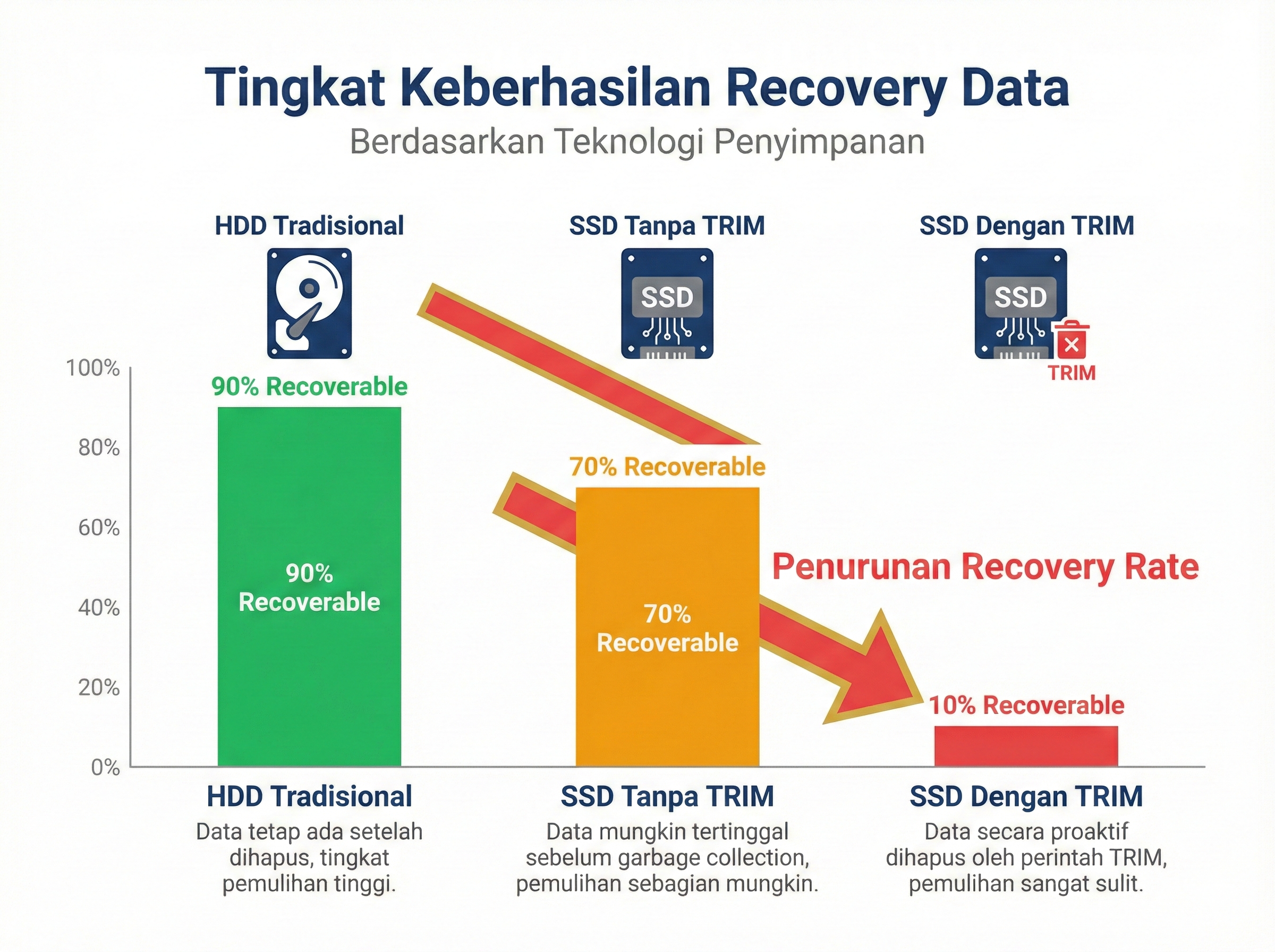
Gambar 9.4: Perbandingan recovery success antara HDD, SSD tanpa TRIM, dan SSD dengan TRIM
Garbage Collection:
Garbage Collection adalah background process di SSD controller yang secara aktif mencari dan menghapus invalid blocks untuk mempertahankan performa write.
Garbage Collection Process:
1. SSD monitors free space
2. When threshold reached:
   ├─ Identify invalid blocks
   ├─ Read valid data dari blocks
   ├─ Write valid data ke new location
   └─ Erase entire old blocks
3. Process continues in background
Result: Original data PERMANENTLY ERASED
Solved Problem 15 ⭐⭐⭐
Soal: Laptop dengan SSD Samsung 980 Pro (TRIM enabled) digunakan dalam insider threat incident. File “dokumen_rahasia.pdf” dihapus 3 jam lalu. OS: Windows 11 dengan TRIM enabled. Evaluate kemungkinan recovery dan explain langkah-langkah yang harus dilakukan!
Penyelesaian:
Step 1: Assess TRIM impact
TRIM Timeline:
T = 0:       File deleted
T = 0-5sec:  TRIM command sent to SSD
T = 5sec:    SSD marks blocks invalid
T = ?:       Garbage collection (unpredictable)

Time elapsed: 3 hours
Status: LIKELY already garbage collected
Step 2: Recovery probability analysis
Factors affecting recovery:

NEGATIVE FACTORS (Against recovery):
- ✗ TRIM enabled di OS
- ✗ Modern SSD (aggressive GC)
- ✗ 3 hours elapsed
- ✗ Samsung 980 Pro (high-performance = aggressive TRIM)
- ✗ Windows 11 (automatic TRIM)

POSITIVE FACTORS (For recovery):
- ✓ If laptop was in sleep mode (GC paused)
- ✓ If SSD was near empty (less GC pressure)
- ✓ Possible RAM remnants (if not rebooted)
Recovery Probability: 5-15% (Very Low)
Step 3: Immediate Actions (Time-Critical!)
CRITICAL ACTIONS (DO IMMEDIATELY):
1. POWER OFF device immediately
   └─ Prevent further garbage collection

2. PRESERVE volatile data (if not yet done):
   ├─ RAM dump (may contain file remnants)
   ├─ Network connections
   ├─ Running processes
   └─ Open file handles

3. DO NOT:
   ✗ Reboot
   ✗ Write anything to SSD
   ✗ Run recovery tools on live system
   ✗ Connect to network
Step 4: Forensic Recovery Procedure
PROCEDURE:

A. VOLATILE DATA ACQUISITION (Before power off):
   ├─ Memory dump: FTK Imager
   ├─ String search untuk "dokumen_rahasia"
   └─ Extract PDF remnants dari RAM

B. SSD IMAGING:
   ├─ Write-blocker MANDATORY
   ├─ Create forensic image (E01/dd)
   ├─ Hash verification
   └─ Multiple copies

C. RECOVERY ATTEMPTS:

   1. Quick scan (unallocated space):
      photorec evidence.dd

   2. Signature-based carving:
      scalpel -c pdf.conf evidence.dd

   3. Manual hex search untuk PDF signature:
      hexdump -C evidence.dd | grep "25 50 44 46"

   4. NTFS MFT analysis:
      Check $MFT records untuk file metadata
      (Filename, size, timestamps may persist)

D. ALTERNATIVE SOURCES:

   If SSD recovery fails, investigate:
   ├─ Volume Shadow Copies (if enabled)
   ├─ Cloud backup (OneDrive, etc.)
   ├─ Email attachments
   ├─ Temporary internet files
   ├─ PDF viewer cache
   ├─ Print spooler remnants
   └─ Network share copies
Step 5: Realistic Expectations
LIKELY OUTCOMES:

Best Case (10-15% chance):
├─ Partial file recovery
├─ PDF structure intact
├─ Some content readable
└─ Enough untuk investigation

Most Likely (85-90% chance):
├─ No recoverable data dari SSD
├─ TRIM has erased blocks
├─ Only metadata available
└─ Must rely on alternative sources

Worst Case (5% chance):
├─ Complete erasure
├─ No metadata
└─ No alternative sources
Jawaban:
Recovery Probability: 5-15% (Very Low)
Assessment:
CRITICAL FACTORS:
├─ TRIM: ENABLED ✗
├─ Time elapsed: 3 hours ✗
├─ SSD type: Samsung 980 Pro (aggressive GC) ✗
├─ OS: Windows 11 (auto-TRIM) ✗
└─ File type: Single PDF (not fragmented) ✓

CONCLUSION: Data likely UNRECOVERABLE from SSD
Recommended Action Plan:
PRIORITY 1 (IMMEDIATE):
1. Power off laptop IMMEDIATELY
2. DO NOT attempt recovery on live system
3. Preserve volatile data if still possible:
   - Memory dump (may contain file content)
   - Swap file analysis
   - Hibernation file (hiberfil.sys)

PRIORITY 2 (FORENSIC IMAGING):
4. Create write-protected forensic image
5. Work ONLY on image copies, not original
6. Document all actions untuk chain of custody

PRIORITY 3 (RECOVERY ATTEMPTS):
7. Automated carving: PhotoRec, Scalpel
8. Manual hex analysis
9. MFT record analysis untuk metadata
10. Cluster analysis (check reallocated blocks)

PRIORITY 4 (ALTERNATIVE SOURCES):
11. Volume Shadow Copies (vssadmin list shadows)
12. Windows.old folder (if recent upgrade)
13. Cloud backup services
14. Browser cache (if viewed in browser)
15. PDF viewer temporary files:
    - %TEMP%
    - AppData\Local\Temp
16. Print spooler: C:\Windows\System32\spool\PRINTERS
17. Email (if received/sent via email)
18. Network shares atau file servers
19. Backup systems (if organizational)
20. Recipient copies (if shared)
Realistic Outcome:
FROM SSD:
- File content: 5-15% chance
- File metadata: 30-40% chance (dari MFT)
- Filename, size, timestamps: 60-70% chance

FROM ALTERNATIVE SOURCES:
- Volume Shadow Copies: 40-50% chance
- Cloud backups: 30-40% chance
- Cache/temp files: 20-30% chance
- Email/network: Variable (depends pada case)
Lesson Learned - Forensic Best Practices:
PREVENTION (Future Cases):
1. Disable TRIM pada suspected devices:
   fsutil behavior set DisableDeleteNotify 1

2. Immediate power-off setelah seizure

3. Boot dari external write-protected USB

4. Prioritize volatile data acquisition

5. Understand SSD behavior:
   - TRIM timing varies per manufacturer
   - Garbage collection is unpredictable
   - Recovery window: Minutes to hours (not days)
Reporting untuk Investigation:
FINDINGS REPORT:
├─ Recovery attempts: Documented
├─ Success rate: Low (as expected dengan TRIM)
├─ Metadata recovered: [List items]
├─ Alternative sources: [List options]
├─ Recommendations: [Next steps]
└─ Technical limitations: [TRIM impact explained]
CRITICAL TAKEAWAY: Dengan modern SSDs dan TRIM enabled, window untuk successful recovery is EXTREMELY SHORT (minutes to hours). Investigations harus:
- Act IMMEDIATELY upon device seizure
- Prioritize volatile data
- Seek alternative evidence sources
- Document TRIM impact untuk legal proceedings
7. Specialized Recovery Scenarios
7.1 Recovery dari Damaged Media
Physical Damage Types:
| Damage Type | Impact | Recovery Possibility | Method |
|---|---|---|---|
| Scratched platter (HDD) | Read errors | Moderate | Professional recovery lab |
| Bad sectors | Local corruption | High | Sector-by-sector imaging |
| Firmware corruption | Drive not detected | Low | Firmware flashing |
| Burnt PCB | No power | Moderate | PCB replacement |
| Water damage | Corrosion | Low-Moderate | Professional cleaning |
| Physical shock | Head crash | Very Low | Clean room recovery |
Bad Sector Handling:
# Using ddrescue for damaged media
ddrescue -f -n /dev/sdb evidence.img evidence.log

# Options:
# -f: Force (overwrite output)
# -n: No-scrape (skip bad sectors first pass)
# -r 3: Retry bad sectors 3 times

# Phase 1: Quick pass (skip bad sectors)
ddrescue -f -n /dev/sdb evidence.img evidence.log

# Phase 2: Retry bad sectors
ddrescue -f -d -r 3 /dev/sdb evidence.img evidence.log

# Phase 3: Aggressive read
ddrescue -f -d -A /dev/sdb evidence.img evidence.log
Solved Problem 16 ⭐⭐
Soal: External hard drive 1TB ditemukan di TKP dengan physical damage. Drive terdeteksi di BIOS tetapi tidak mount di Windows. Smartctl menunjukkan 2,458 bad sectors. Bagaimana approach untuk melakukan imaging dengan data loss minimal?
Penyelesaian:
Step 1: Assess drive condition
# Check SMART status
smartctl -a /dev/sdb

Output indicators:
├─ Reallocated Sectors: 2,458
├─ Current Pending Sectors: 342
├─ Offline Uncorrectable: 116
└─ Overall Health: FAILING
Status: Drive is FAILING - Act immediately!
Step 2: Choose appropriate imaging strategy
Strategy: Multi-pass ddrescue
Reasons:
- HDD (not SSD) - data persists
- Bad sectors = read errors, not erased
- Time-sensitive (drive deteriorating)
- Need maximize data recovery
Step 3: Imaging procedure
# PREPARATION:
# 1. Destination must be >= source size
# 2. Use write-blocker
# 3. Destination should be reliable SSD/HDD

# PHASE 1: Quick forward pass (skip errors)
ddrescue -f -n -v /dev/sdb evidence.img evidence.log

# Expected behavior:
# - Skip bad sectors immediately
# - Fast initial image (~30-60 minutes)
# - Log bad sector locations

# PHASE 2: Backward pass (different head approach)
ddrescue -f -R -v /dev/sdb evidence.img evidence.log

# -R: Reverse direction
# May recover some sectors missed in forward

# PHASE 3: Retry bad sectors (limited)
ddrescue -f -r 1 -v /dev/sdb evidence.img evidence.log

# -r 1: Only 1 retry per sector
# Minimize drive stress

# PHASE 4: Trim edge (if time allows)
ddrescue -f -m evidence.img -v /dev/sdb evidence.img evidence.log

# -m: Trim edges around bad sectors
# May recover additional data
Step 4: Analyze results
# Check ddrescue log
cat evidence.log

# Example log:
# rescued:   984,237,891,584 bytes (984 GB)
# errsize:    15,762,108,416 bytes (16 GB)
# errors:              2,458 sectors

Recovery rate: 984 GB / 1 TB = 98.4% SUCCESS
Step 5: Post-imaging analysis
# Mount image (read-only)
mount -o ro,loop evidence.img /mnt/evidence

# Check file system
fsck -n /dev/loop0

# List files
ls -laR /mnt/evidence > file_list.txt

# Identify corrupted files
# (Files in bad sectors akan unreadable)
Jawaban:
Imaging Approach: Multi-Phase ddrescue Strategy
Step-by-Step Procedure:
PHASE 1: INITIAL ASSESSMENT (5 mins)
├─ SMART check: Identify bad sectors count
├─ Drive condition: Evaluate health
├─ Time estimate: Calculate imaging time
└─ Destination prep: Prepare target storage

PHASE 2: QUICK IMAGING (30-60 mins)
├─ ddrescue -f -n (forward, skip bad)
├─ Maximize readable data quickly
├─ Log bad sector locations
└─ Get ~95% data immediately

PHASE 3: REVERSE PASS (30-60 mins)
├─ ddrescue -f -R (reverse direction)
├─ Different head approach
├─ Recover additional ~2-3%
└─ Update log file

PHASE 4: TARGETED RETRY (15-30 mins)
├─ ddrescue -f -r 1 (single retry)
├─ Focus pada recoverable bad sectors
├─ Minimize drive stress
└─ Recover final ~0.5-1%

PHASE 5: VERIFICATION (10 mins)
├─ Hash calculation (dari good sectors)
├─ File system check
├─ Identify corrupted files
└─ Document recovery rate
Expected Results:
Best Case:
├─ 98-99% data recovered
├─ Most files intact
├─ Few corrupted files (in bad sectors)
└─ Usable evidence

Typical Case:
├─ 95-97% data recovered
├─ Some files corrupted
├─ File system partially damaged
└─ Majority evidence preserved

Worst Case:
├─ 85-90% data recovered
├─ File system severely damaged
├─ File carving required
└─ Manual reconstruction needed
Critical Considerations:
DO:
✓ Use write-blocker
✓ Work in phases
✓ Monitor drive temperature
✓ Document everything
✓ Create multiple copies when possible

DON'T:
✗ Retry excessively (damages drive)
✗ Use Windows tools (writes logs)
✗ Power cycle repeatedly
✗ Delay imaging (drive deteriorating)
✗ Run CHKDSK (may worsen damage)
File Recovery Priority (jika tidak semua recoverable):
PRIORITY 1: Critical Evidence
├─ Documents dalam investigation scope
├─ Images/videos relevant to case
├─ Email databases
└─ Browser history/cache

PRIORITY 2: Supporting Evidence
├─ System files (untuk timeline)
├─ Application data
├─ User profiles
└─ Logs

PRIORITY 3: General Data
├─ Personal files
├─ Media files
└─ Installed applications
Reporting:
IMAGING REPORT:
├─ Source: 1TB External HDD, 2,458 bad sectors
├─ Method: Multi-pass ddrescue
├─ Duration: ~2-3 hours
├─ Success Rate: XX% (calculate dari log)
├─ Corrupted Files: [List if identifiable]
├─ Hash: SHA-256 (dari good sectors)
└─ Next Steps: [File system analysis, carving]
LESSON: Damaged media requires PATIENT, SYSTEMATIC approach. Don’t rush, don’t retry excessively - balance between data recovery and preventing further damage.
Supplementary Problems
Problem 1 ⭐: File System Recognition
Soal: Jelaskan mengapa FAT32 lebih “forensics-friendly” dibanding NTFS untuk file recovery!
Problem 2 ⭐: Signature Identification
Soal: Diberikan hex: 89 50 4E 47 0D 0A 1A 0A. Identifikasi file type!
Problem 3 ⭐⭐: Slack Space Calculation
Soal: File 5,678 bytes pada cluster 8KB. Hitung slack space!
Problem 4 ⭐⭐: Recovery Strategy
Soal: USB 32GB diformat quick format. Strategi recovery yang paling efektif?
Problem 5 ⭐⭐: Tool Selection
Soal: Forensic image 250GB. Pilih: Foremost atau Scalpel? Mengapa?
Problem 6 ⭐⭐⭐: SSD Analysis
Soal: SSD dengan TRIM enabled, file dihapus 1 jam lalu. Langkah-langkah recovery?
Problem 7 ⭐⭐⭐: Database Carving
Soal: SQLite database corrupt. Bagaimana recover individual records?
Problem 8 ⭐⭐⭐: Fragmented File Recovery
Soal: Large video file (4GB) terfragmentasi. Carving strategy?
Problem 9 ⭐⭐⭐: Encrypted Container
Soal: TrueCrypt volume di unallocated space. Approach untuk identifikasi dan analysis?
Problem 10 ⭐⭐⭐: Military Investigation Scenario
Soal: Laptop Kodam dengan SSD, suspected data exfiltration, file dihapus 2 hari lalu. Comprehensive investigation plan?
Ringkasan
| Topik | Key Points | Tools |
|---|---|---|
| File Deletion | Data remains until overwritten | - |
| File Signatures | Magic bytes identify file types | HxD, 010 Editor |
| Slack Space | Hidden data source | Forensic tools |
| Unallocated Space | Primary recovery target | Carving tools |
| Header/Footer Carving | Most common technique | PhotoRec, Foremost |
| Recovery Tools | Recuva (GUI), PhotoRec (CLI) | Recuva, PhotoRec |
| Advanced Carving | Foremost, Scalpel | Foremost, Scalpel |
| Autopsy Integration | Case management + carving | Autopsy |
| Manual Carving | Hex analysis | HxD, 010 Editor |
| Database Recovery | SQLite, PST/OST | DB Browser, readpst |
| SSD Challenges | TRIM, garbage collection | - |
| Damaged Media | ddrescue multi-pass | ddrescue |
Referensi
-
Carrier, B. (2005). File System Forensic Analysis. Addison-Wesley Professional. Chapter 12-14.
-
Casey, E. (2022). Digital Evidence and Computer Crime: Forensic Science, Computers, and the Internet (4th ed.). Academic Press. Chapter 7.
-
Phillips, A., Nelson, B., & Steuart, C. (2022). Guide to Computer Forensics and Investigations (7th ed.). Cengage Learning. Chapter 8.
-
Nikkel, B. (2021). Practical Forensic Imaging: Securing Digital Evidence with Linux Tools. No Starch Press. Chapter 8-10.
-
Hargreaves, C., & Chivers, H. (2008). “Recovery of Encryption Keys from Memory Using a Linear Scan.” Third International Conference on Availability, Reliability and Security.
-
Wei, M., Grupp, L. M., Spada, F. E., & Swanson, S. (2011). “Reliably Erasing Data from Flash-Based Solid State Drives.” FAST.
-
Garfinkel, S. L. (2007). “Carving Contiguous and Fragmented Files with Fast Object Validation.” Digital Investigation.
-
Richard III, G. G., & Roussev, V. (2005). “Scalpel: A Frugal, High Performance File Carver.” DFRWS 2005.
-
NIST. (2006). Test Results for Digital Data Acquisition Tool: FTK Imager 2.5.3. NIST Computer Forensics Tool Testing Program.
-
Fairbanks, K., Lee, C., & Owen, H. (2012). “Forensic Implications of Solid State Drives.” Journal of Digital Forensics, Security and Law.
License / Lisensi
© 2026 Anindito. Licensed under Creative Commons Attribution 4.0 International (CC BY 4.0).
You are free to:
- Share — copy and redistribute the material in any medium or format
- Adapt — remix, transform, and build upon the material for any purpose, even commercially
Under the following terms:
- Attribution — You must give appropriate credit, provide a link to the license, and indicate if changes were made.
https://creativecommons.org/licenses/by/4.0/